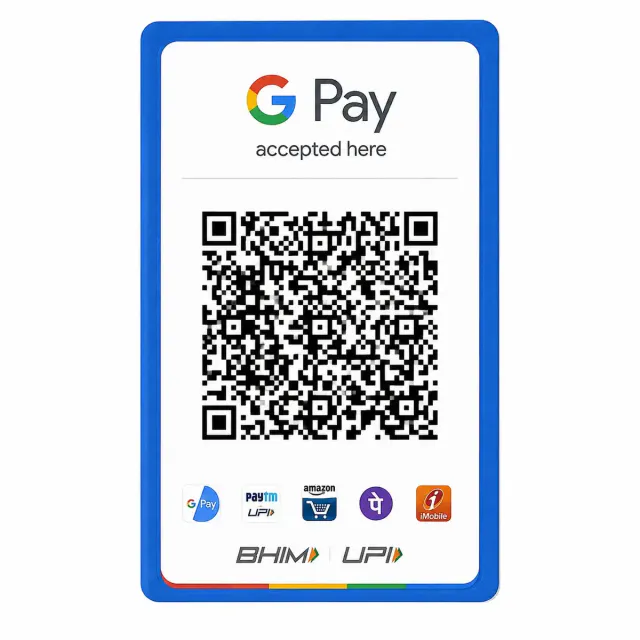
Google Pay QR Code PVC Card – Print Your Existing Payment QR
A Google Pay QR code PVC card displays your existing payment QR on wallet-size plastic for ₹50. Send your own QR image or PDF; we prepare the print in 1 day, with delivery in 5 to 8 days. GiftKida provides private printing and does not issue Google cards or set up payment accounts.
Quantity: 1
Upload your card files*
Upload clear photos or a PDF of the front and back.
0 of 10 files
Cards for different people? Pick the quantity above, then add a file for each.
- Upload PDF, or the front and back files
- JPG, PNG, WebP or PDF, max 50 MB each
- Locked PDF? Add its password after upload
Delivery charges apply based on your location.
Estimated Delivery
Delivery by
Free Delivery on orders above ₹999.
Ordered
Order Ready
Delivered
A Google Pay QR code PVC card displays your existing payment QR on wallet-size plastic for ₹50. Send your own QR image or PDF; we prepare the print in 1 day, with delivery in 5 to 8 days. GiftKida provides private printing and does not issue Google cards or set up payment accounts.
The queue at a small shop can stop for a surprisingly small reason: the payment code has slipped behind the biscuit jar. A card kept in a visible holder gives the code a fixed place. You can move it when you clean the counter and put it back without peeling tape off a wall. A Google Pay QR code PVC card is a printed copy of the QR artwork you already use, made for that everyday job.
This is a printing service. GiftKida does not open a merchant account, activate a payment service or supply a Google payment terminal. The account behind your code remains yours, and the payment provider continues to handle transactions. Please send only a code you own or have permission to reproduce.
Google Pay QR Code PVC Card: What Arrives
You receive a rigid, wallet-size plastic card with rounded corners. The standard size is 85.6 mm by 54 mm. Your uploaded artwork supplies the QR and any business details to be printed. If you want printing on the reverse, include a clearly labelled back file rather than assuming that we can invent your contact details.
A Google Pay QR code PVC card has no chip, screen or speaker. It does not announce payments or show whether an account has received money. Think of it as a durable surface for displaying your existing code. A customer still needs a compatible payment app and a working connection to complete a transaction.
Preparing a File for Your Google Pay QR Code PVC Card
Start with the QR image or PDF available through your own Google Pay account. Save the original file where you can find it again. Menu names vary between app versions and account types, so use Google's current help if the download option is unclear. Avoid downloading a similar-looking code from an image search: its payment destination would belong to somebody else.
Before ordering a Google Pay QR code PVC card, look at the saved image at full size. The code should have square edges and a clear, empty margin. Text beneath it should be readable without guessing. If the image includes a phone's notification bar, chat messages or unrelated account information, obtain a clean QR file instead of submitting the entire screenshot.
PDF, JPG, PNG and WebP files are supported by the upload box, with a limit of 50 MB per file. A password-protected PDF needs its document password in the field shown after upload. That password opens the supplied document; it is never your banking password, UPI PIN, account login or OTP. Those details have no place in a print order.
Check the Recipient Before Printing
Use a second phone to scan the file from your screen. Read the recipient shown by the payment app and compare it with the account you intended to use. If you manage two shops, do this for each file separately. Similar branding does not mean that two codes lead to the same recipient.
Do not make a payment just to inspect the recipient. Stop before entering a PIN or approving a transaction. If the name is unexpected, return to your account and obtain the right file. Printing cannot change a code's destination, restore an inactive account or correct a provider's records.
Ordering a Google Pay QR Code PVC Card
Use Upload files on this product page, select the front artwork and wait for its upload to finish. Add your back artwork if needed, with filenames that make the two sides easy to distinguish. Check the uploaded rows before continuing. If an upload stalls, use Retry and confirm it has completed before adding the item to your cart.
Choose the quantity for that one design, add it to your cart and complete the delivery address at checkout. A Google Pay QR code PVC card order can include one to ten identical copies. For a different recipient or a different design, add another item with its own files so the artwork stays associated with the right card.
Keep a copy of the files you submitted. They are useful if you need to ask about the print, replace a damaged card or order the same artwork again. Your order confirmation identifies the purchase; the original file identifies precisely which design you wanted. Check both while the details are still fresh.
Google Pay QR Code PVC Card Price and Delivery
The price is ₹50 per card, including printing on both sides when you supply both designs. Free delivery applies above ₹999. Check the cart for the shipping charge on a smaller order before paying, since the amount shown at checkout is the amount you approve.
We prepare a Google Pay QR code PVC card in 1 day, with delivery in 5 to 8 days across India. Keep the confirmation email and use the order tracking page for progress. If you are buying for an exhibition or a market day, allow time to receive the parcel and inspect the print before the event begins.
Google Pay QR Code PVC Card for Multiple Counters
Plan where each card will go before choosing a quantity. A fixed shop may want one near the till and one beside the collection desk. A visiting tutor may prefer a wallet copy to show after a lesson. A delivery seller can carry a card in a protective sleeve and show it when the customer is ready.
For several counters using the same recipient, a Google Pay QR code PVC card at each payment point saves passing one card along the queue. For counters using different recipients, keep the files and finished cards clearly separated. Confirm the displayed recipient after positioning every card, especially when staff move stands during cleaning.
Helping a Customer Scan Without Glare
Choose a holder for your Google Pay QR code PVC card that leaves the complete border visible. A tight clip can hide a corner even when the print itself is clear.
Set the card where a customer can see the whole code without reaching over goods. Try the position with your own phone. If a ceiling light reflects into the camera, turn the holder slightly or move it away from the light. A glossy print can reflect its surroundings, so placement matters as much as a clean surface.
Leave space around the holder. Receipts, promotional stickers and price labels should not cross the code or its white margin. Let the customer choose a comfortable scanning distance rather than holding the card against their camera. A steady card and a clear view give the camera time to focus.
Keeping Your Google Pay QR Code PVC Card Current
An old print can still look tidy after its payment destination has changed. If you update your QR, retire the old copies together. Check the till, spare stand, delivery bag and wallet so a forgotten card cannot return to use later. Label the replacement artwork in your own storage with a date you recognise.
Replace a Google Pay QR code PVC card when scratches cover the code or the artwork no longer matches your active account. Send the current file for the replacement. Do not draw over damaged squares, paste part of a new code onto an old one or assume a cleaner-looking copy must still be correct.
Routine Care at the Counter
Wipe the card with a soft cloth and keep it away from cooking heat and direct contact with cleaning chemicals. The plastic is intended for ordinary handling, but it can still scratch or bend if trapped under heavy equipment. Store spare copies flat, away from tools, keys and sharp edges.
Take a quick look at the display when you open the shop. Check that the card is yours and that nobody has covered it with a different sticker. A printed QR does not confirm payment, so verify receipt through your own account before handing goods over. A customer's screenshot alone should not be your order record.
What Printing Cannot Fix
We cannot troubleshoot failed settlements, change a bank account, recover a login or promise that every phone will scan a particular file. Those questions belong with your payment provider. Use Google Pay's official support for current account and payment guidance, and keep private account information out of messages about printing.
If your source file will not scan, pause the purchase and obtain a fresh download. Ordering a Google Pay QR code PVC card reproduces the supplied artwork; it does not repair an unreadable QR. Test again after the card arrives, from the position where customers will actually use it, before putting the display into daily service.
Related Printing Options
When ordering a Google Pay QR code PVC card alongside document prints, check each item's uploaded files separately before paying. A payment QR and a personal ID should never share the same artwork by mistake.
Use the PhonePe QR printing page for a PhonePe design or the Paytm QR printing page for a Paytm file. Keep each provider's artwork with its own cart item when ordering several kinds. You can also browse the PVC card collection for document copies and other card formats.
For business paperwork, a PAN card print is a separate product with its own upload. Questions about delivery or a damaged parcel belong with GiftKida support. Describe the order problem there without sending banking credentials or approving a payment request from somebody claiming to resolve a printing issue.
Is this supplied or endorsed by Google?
No. It is a private reproduction of artwork you provide. Google does not issue this printed product, and buying it does not create a merchant account.
Can you make a payment QR from my bank details?
No. Obtain the QR through your payment provider and upload the finished file. We do not need your bank login or payment PIN to print it.
Will customers see a payment confirmation on the card?
No. The card is printed plastic. Check incoming payments in your own account or through a confirmation service provided by your payment provider.
Can I put different codes in one quantity selection?
Use one cart item for each design and recipient. Increase that item's quantity only when you want more copies of the same artwork.
Does the reverse need another file?
Yes, if you want specific artwork printed there. Label the front and back clearly and include only information you intend customers to see.
What should I do when a card arrives with damage?
Contact GiftKida with the order reference and photographs of the parcel and card. The returns policy explains the process and the time allowed to report an issue.
Upload the highest resolution photo you have for the sharpest print. We warn you before you order if a photo may print soft at the size you chose.
Every order is made after you place it. Allow 1 day to prepare it and 4 to 7 days for delivery across India. Shipping is free on orders above ₹999 and ₹60 below that. Read our shipping policy.
If your order arrives damaged or defective, contact us within 7 days of receiving it. Once the returned product reaches us and is verified, your refund is processed within 24 hours. Personalized items cannot be returned for a change of mind once printing has started. Read our return and refund policy.
Need help uploading images or adding details? Call or WhatsApp +91 9529240029, email [email protected], contact us, or see the FAQs.